How to Fix Google AI Studio "Failed to Load File Differences" GitHub Error
If you've seen the "Failed to Load File Differences" error in Google AI Studio while trying to connect or sync with GitHub, you're not alone. This bug almost always affects developers with multiple Google or GitHub accounts signed in at the same time — and the fix is simpler than you think.
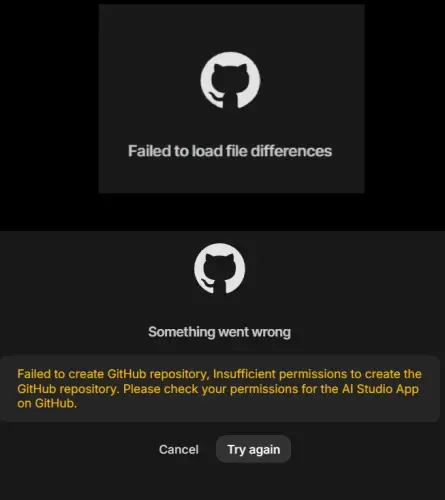
What Is the "Failed to Load File Differences" Error?
Google AI Studio lets you connect your projects directly to a GitHub repository so you can version-control your prompts, models, and code. When working correctly, it shows a clean diff view of any file changes — similar to a pull request on GitHub.
Many developers, however, run into a state where the diff panel simply says "Failed to Load File Differences" — sometimes with a spinner that never resolves, sometimes as an immediate silent failure. Push and pull buttons may appear greyed out or do nothing when clicked.
GitHub panel shows "Failed to Load File Differences" · Diffs never load after refreshing · Repository appears connected but syncing fails · AI Studio shows the wrong GitHub username or repository · OAuth authorization loops without completing.
Root Cause: Multiple Accounts Logged In
The most common cause of this error — and one that Google's own error message never explains — is having multiple Google accounts or multiple GitHub accounts signed in simultaneously in the same browser session.
Here is what happens: when AI Studio initiates an OAuth flow to connect to GitHub, the browser's session cookies determine which Google account and which GitHub account get used. If you're logged into two Google accounts (say, a personal Gmail and a work Workspace account), or two GitHub accounts, the OAuth handshake gets confused. It sends credentials for one account but the callback lands on a different session — resulting in a broken token, a mismatched repository reference, and the diff failure.
AI Studio does not handle multi-account browser sessions well. It silently picks up a conflicting session token and links your project to the wrong GitHub account — making file diffs impossible to load.
Solution 1 — The Account Reset Method
This is the most reliable fix, discovered through direct hands-on troubleshooting. It works by forcing AI Studio to reveal which GitHub account it actually connected to, revoking that bad connection, and re-establishing a clean link with the correct single account.
test-repo. After submitting, pay close attention: AI Studio will display which GitHub account it has actually connected to. This is the critical diagnostic moment.wrong-username/test-repo, AI Studio silently authenticated with the wrong GitHub account. This is the root cause of your broken diffs — the token belongs to a different account than you intended.Creating a new app forces AI Studio to reveal which account it silently connected to — exposing the misconfiguration. Revoking the OAuth grant clears the broken token entirely. Starting fresh with a single account leaves no ambiguity for the OAuth flow to exploit.
Solution 2 — Use a Separate Browser Profile
If you regularly work across multiple Google or GitHub accounts, the cleanest long-term solution is dedicated browser profiles — one profile per account pair. Each profile maintains completely separate cookies, sessions, and local storage with zero cross-contamination.
aistudio.google.com in this profile. Whenever you start an AI Studio + GitHub session, switch to this profile first — never mix it with other account logins.Browser profiles work identically on Chrome, Edge, Brave, and Arc. Firefox users can install the Multi-Account Containers extension for the same result.
Solution 3 — Revoke & Re-authorize GitHub OAuth Permissions
Sometimes the problem is simply a stale or corrupted OAuth token rather than an active multi-account conflict. Revoking AI Studio's GitHub access and re-granting it fresh often resolves the issue.
Solution 4 — Clear Cookies and Browser Storage
If session cookies are corrupted or cross-contaminated between accounts, clearing them forces a clean re-authentication without requiring account changes.
aistudio.google.com, press F12 to open DevTools → go to the Application tab → Storage section → click Clear Site Data. This removes cookies, localStorage, and cache only for AI Studio.github.com and repeat the same DevTools process. This clears any conflicting GitHub session tokens stored by the browser.Clearing site data signs you out of those sites. Have your passwords or a password manager ready before you start.
Solution 5 — Incognito / Private Browsing Mode
Incognito mode opens with a completely blank session — no stored cookies, no conflicting accounts. This is the fastest way to confirm whether the multi-account issue is responsible, or get a one-off working session while you plan a permanent fix.
Ctrl + Shift + N on Windows/Linux (Chrome/Edge) · Ctrl + Shift + P on Firefox · Cmd + Shift + N on Mac.google.com and sign in to the single Google account associated with your AI Studio project.github.com and sign in to the GitHub account that owns the repository you want to connect.aistudio.google.com, open your project, and connect to GitHub. If diffs load correctly here, your regular browser session has conflicting accounts — apply Solution 1 or Solution 2 for a permanent fix.How to Prevent This Error in the Future
Once resolved, a few habits will keep AI Studio's GitHub integration working reliably long-term.
The Golden Rule: One Account Pair Per Browser Session
AI Studio's GitHub integration assumes your browser has exactly one active Google account and exactly one active GitHub account at any time. Having multiple accounts active creates session ambiguity that the OAuth flow cannot reliably resolve.
Organize Work With Separate Browser Profiles
If you manage multiple Google or GitHub accounts daily, set up one browser profile per account combination. For example, one profile for your personal Google + personal GitHub, another for your work Google + work GitHub. This makes account conflicts structurally impossible.
Reconnect GitHub After Switching Accounts
If you ever change which Google account is primary in your browser, always disconnect and reconnect the GitHub integration in AI Studio afterward. Existing tokens do not reliably carry over after account switches.
Periodically Review Authorized OAuth Apps
Visit GitHub → Settings → Applications → Authorized OAuth Apps every few months and revoke any stale or unrecognized Google authorizations. A clean OAuth list means fewer conflicts and better security overall.
Quick-Reference Summary
| Solution | Best For | Time | Permanent Fix? |
|---|---|---|---|
| 1. Account Reset Method ✅ | Multiple accounts signed in; wrong account was linked | 10–15 min | Yes |
| 2. Separate Browser Profile | Users who regularly switch between multiple accounts | 5 min setup | Yes — best long-term practice |
| 3. Revoke & Re-authorize OAuth | Stale or corrupt token; single account but still broken | 5–10 min | Usually |
| 4. Clear Cookies & Storage | Session corruption or mixed cache state | 3–5 min | Sometimes |
| 5. Incognito Mode | Quick diagnostic or one-off session | 2 min | No — session only |
Frequently Asked Questions
Conclusion
The "Failed to Load File Differences" error in Google AI Studio is almost always caused by multiple Google or GitHub accounts being signed in simultaneously — a scenario that confuses AI Studio's OAuth handshake and silently links your project to the wrong account.
The fastest and most reliable fix is the Account Reset Method: create a new app, link it to GitHub, observe which account AI Studio actually connected to, revoke that bad OAuth grant from within that GitHub account, then sign in with a single clean account and reconnect.
For the long term, keep browser profiles organized so every AI Studio and GitHub session is isolated and unambiguous. A few minutes of setup now prevents hours of frustration later.
Share it with your team — someone else is likely fighting the same error right now. More guides at blog.clicks.com.pk.